
Roles and Permissions
This guide explains how roles and permissions work in the Admin application. You will learn what they are, how they affect what users can see and do, and how to assign them correctly.
What Are Roles and Permissions?
Roles
A role is a predefined set of access rights. Think of it as a job title: for example, "Customer Support", "Team Leader", or "Administrator". Each role has:
- A name (e.g. CSR, KAE, CSA).
- A security level (a number that controls who can manage sensitive permissions).
- A default set of permissions that apply to everyone with that role.
When you assign a role to a user (administrator), they automatically receive the permissions configured for that role.
Permissions
A permission is the right to do something specific in the system, such as:
- View a section (e.g. "Shipments", "Refunds").
- Perform an action (e.g. "Create administrator", "Edit role").
- See a menu option (e.g. a link in the sidebar).
Permissions are grouped by module (e.g. Administrators, Roles, Tickets). Each permission can be:
- From the role (inherited): the user has it because of their role.
- Added as an exception: the user has it even if the role does not grant it.
- Revoked: the user does not have it even if the role would grant it.
- Not assigned: the user does not have it and the role does not grant it either.
The application uses these permissions to:
- Show or hide menu items — users only see links they are allowed to access.
- Allow or block actions — buttons and options are enabled only when the user has the right permission.
- Control who can change permissions — only users with a high enough security level can assign or remove sensitive permissions.
Where to Manage Roles and Permissions
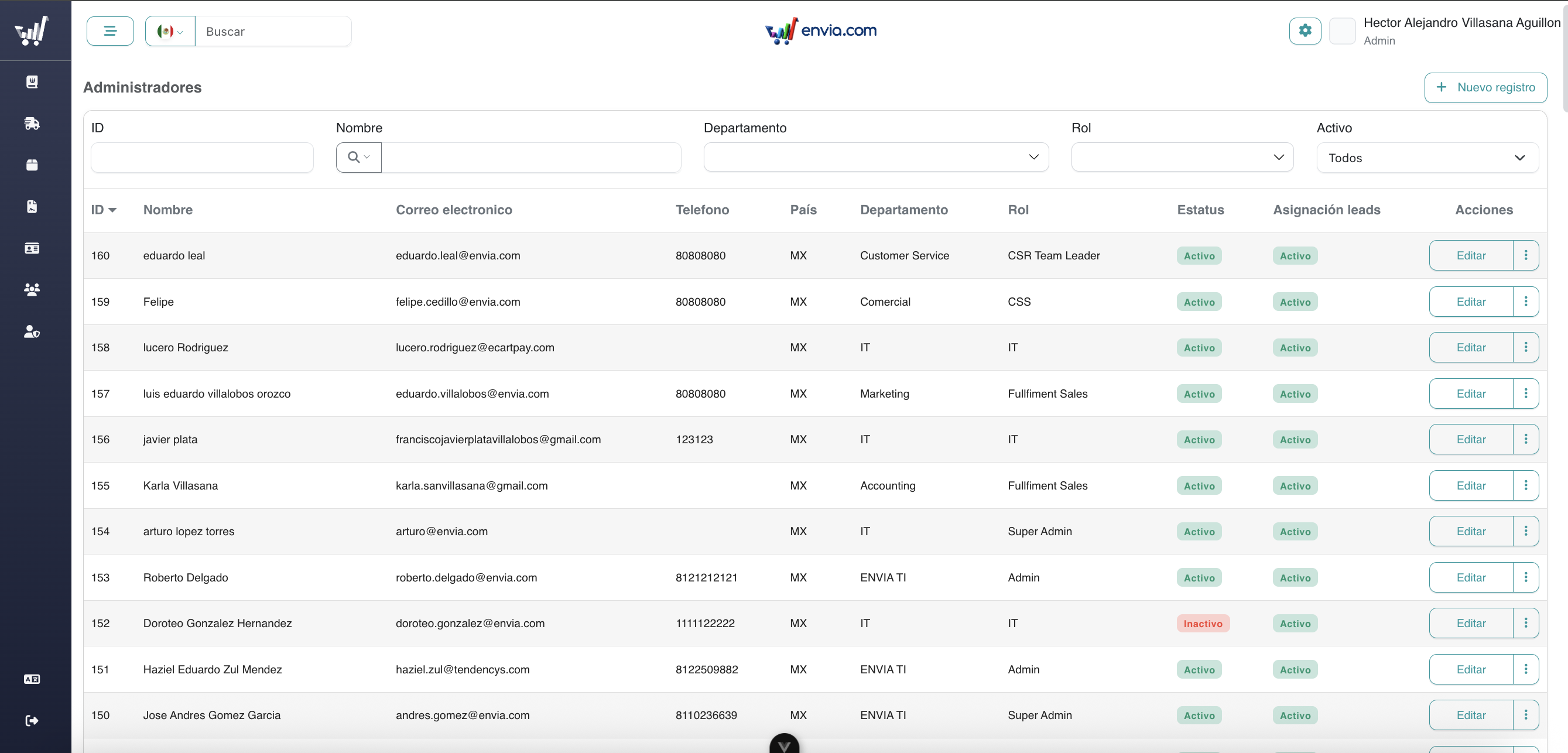
Administrators
Go to the Administrators section. Open an administrator and use Assign permissions to give or remove permissions for that person. Each administrator has a role; they can also have extra permissions (exceptions) or revoked permissions on top of that role.
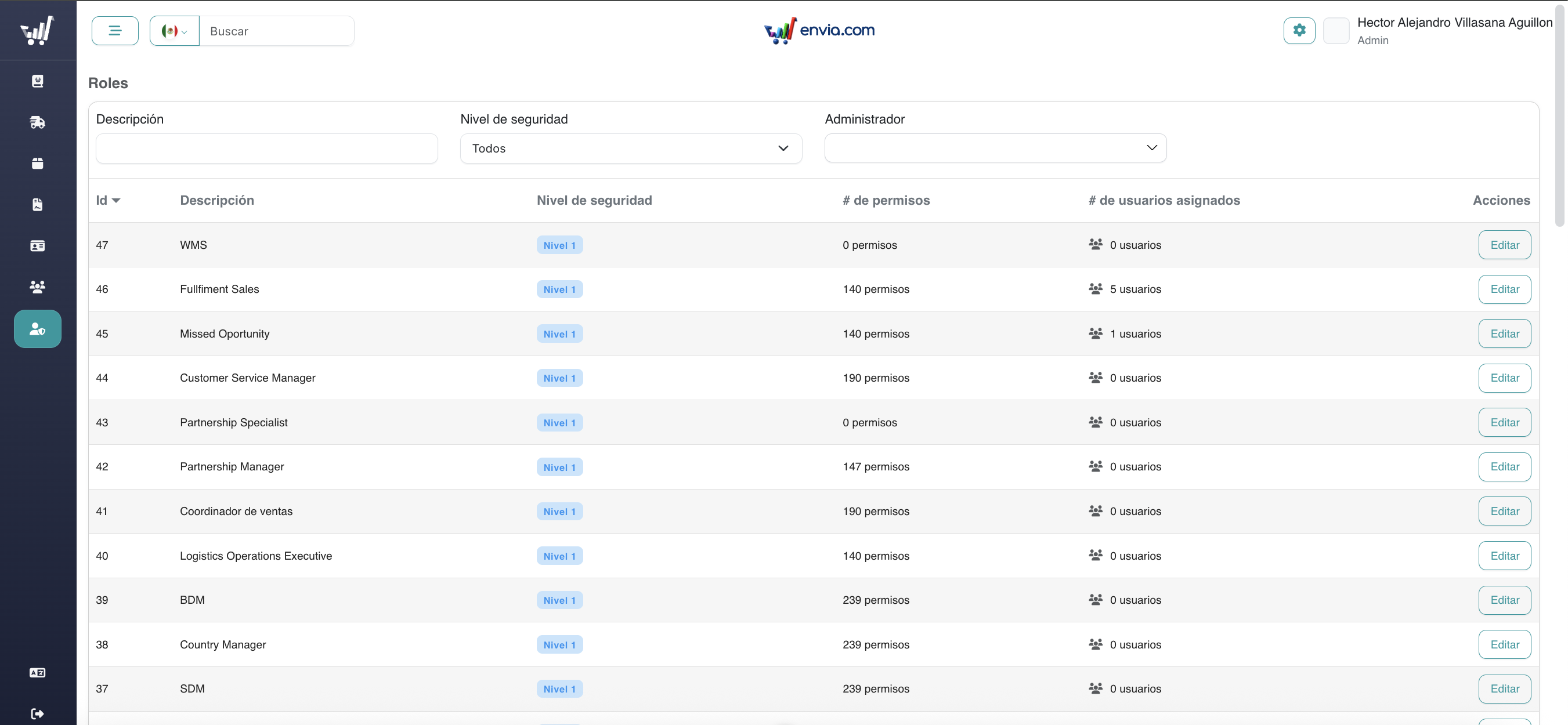
Roles
Go to the Roles section. Open a role to edit its name and security level, and to define which permissions that role has. All users with that role will get those permissions by default (unless you revoke or add exceptions per user in Administrators).
Security Levels When Assigning Permissions
Permissions and roles use security levels (numbers, typically 1, 2, or 3). They control who is allowed to assign or remove a permission.
How It Works
- Each permission has a security level (e.g. 1, 2, or 3).
- Each role has a security level.
- Your role's security level is compared to the permission's security level when you try to turn a permission on or off.
Rule: You can only assign or remove a permission if your role's security level is greater than or equal to that permission's security level.
| Level | Sensitivity | Who can manage |
|---|---|---|
| 1 | Basic | Many users can manage these permissions |
| 2 | Medium | Only users with level 2 or higher |
| 3 | High | Only users with level 3 |
In the interface, you will see:
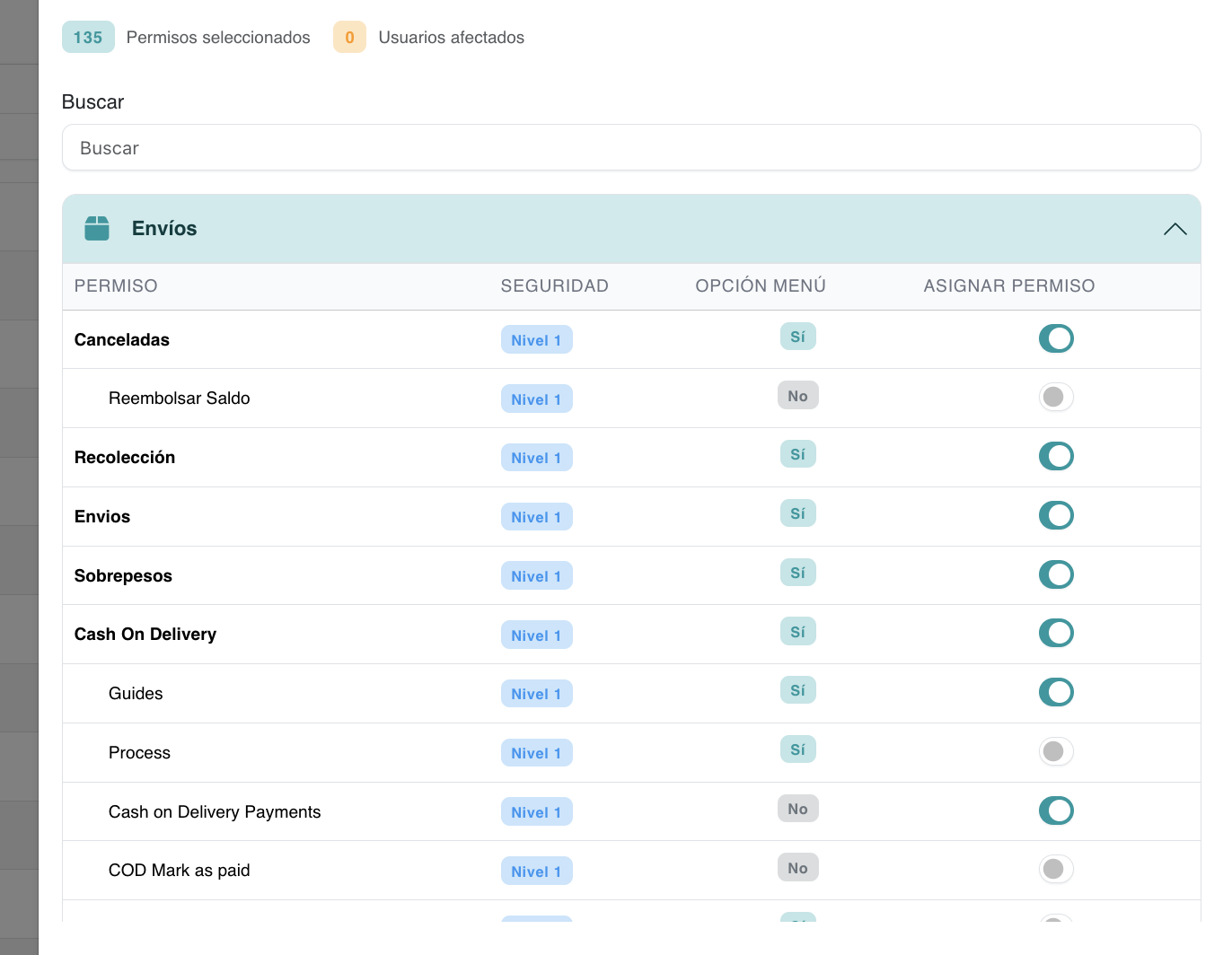
- Permissions you can change: the switch is enabled.
- Permissions you cannot change: the switch is disabled (grayed out). This usually means that permission has a higher security level than your role.
Examples: How Levels Affect Permission Assignment
You Have Role Security Level 3
- You can assign or remove Level 1 permissions (3 ≥ 1). ✅
- You can assign or remove Level 2 permissions (3 ≥ 2). ✅
- You can assign or remove Level 3 permissions (3 ≥ 3). ✅
You can manage all permissions.
You Have Role Security Level 2
- You can manage Level 1 and Level 2 permissions. ✅
- You cannot manage Level 3 permissions — those switches will be disabled. ❌
Only someone with a Level 3 role (e.g. a senior admin) can change them.
You Have Role Security Level 1
- You can only manage Level 1 permissions. ✅
- Level 2 and Level 3 permissions will be disabled for you. ❌
You will see them, but you cannot turn them on or off.
Assigning Permissions to Another User
When you open Assign permissions for an administrator:
- You see a list of permissions grouped by module (e.g. Administrators, Roles, Tickets).
- Each permission shows its security level.
- Enabled switches — you are allowed to change that permission for this user.
- Disabled switches — that permission has a higher security level than your role; you cannot change it.
Permission Types (Origin)
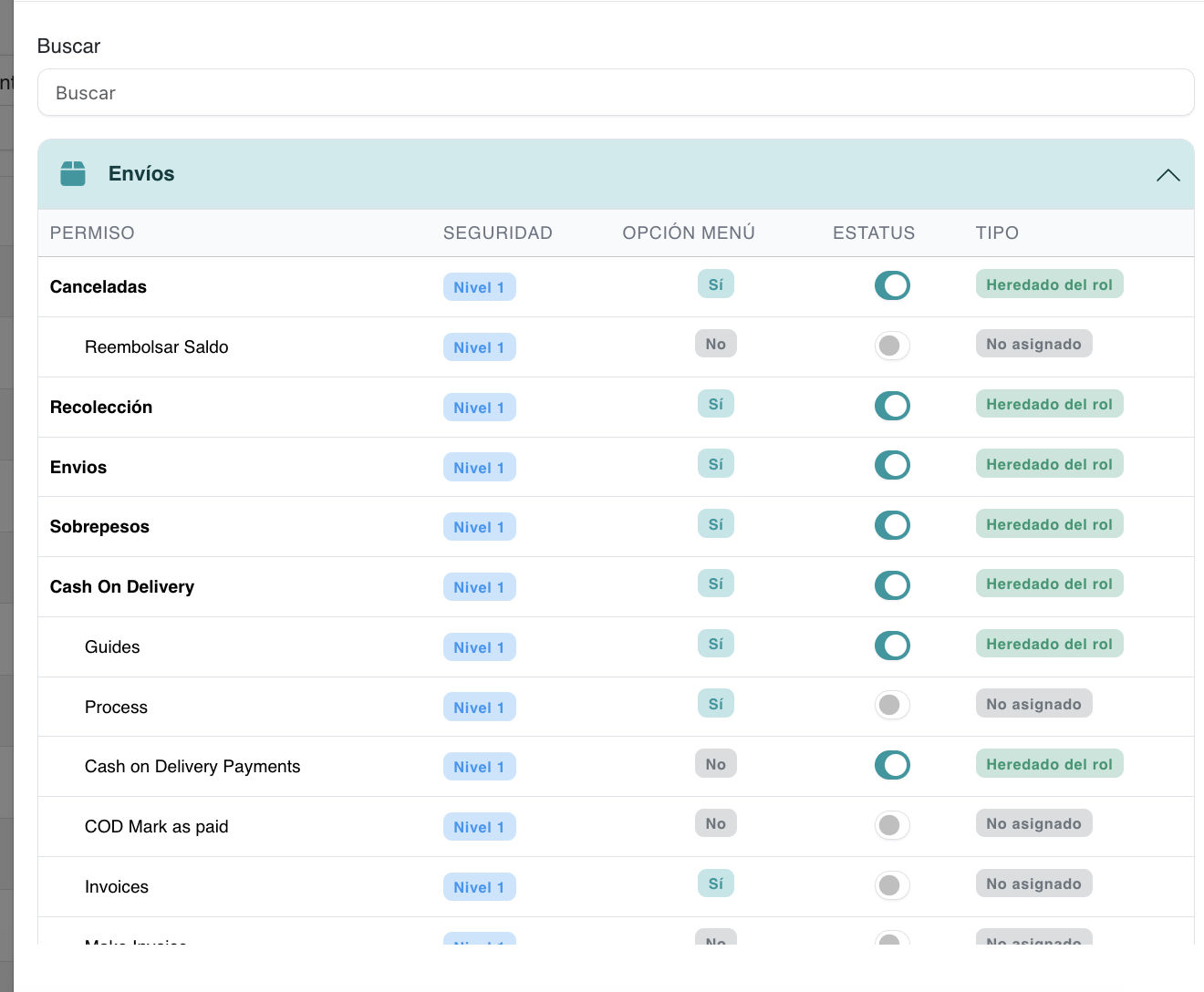
When you look at an administrator's permissions, you may see labels that indicate where the permission comes from:
| Label | Meaning |
|---|---|
| Inherited | The user has this permission because of their role. No extra change was made for this user. |
| Exception | The user was given this permission individually, even though the role does not include it. |
| Revoked | The user was denied this permission individually, even though the role would grant it. |
| Not assigned | The user does not have this permission, and the role does not grant it either. |
These help you understand whether a user's access comes from their role or from individual adjustments.
Roles: Base Permissions and Affected Users
When you edit a role and open the Permissions tab:
- The permissions you turn on become the default set for that role. Every user with that role will get those permissions (unless you revoke or add exceptions per user in Administrators).
- If the role has users assigned, the interface may show how many users are affected. Changing the role's permissions will change what those users can do, so review before saving.
TIP
Roles = default set of permissions for a group of users. Administrators (per user) = add exceptions (extra permissions) or revoke permissions on top of the role.
Menu and Visibility
The sidebar menu is built from your permissions. Only menu items that correspond to permissions you have will be visible. If you don't see a section (e.g. "Roles" or "Administrators"), it usually means your role or your individual permissions do not include the permission that controls that menu option.
Summary
| Concept | Brief explanation |
|---|---|
| Role | A named set of default permissions (e.g. CSR, Admin), with a security level. |
| Permission | Right to access a section, action, or menu option. |
| Security level | Number (1, 2, 3) that restricts who can assign that permission; higher = more restricted. |
| Inherited | Permission comes from the user's role. |
| Exception | Permission added only for this user, on top of the role. |
| Revoked | Permission removed only for this user, even if the role has it. |
| Where to manage | Roles → edit role and its permissions; Administrators → assign permissions per user. |
If you need to give or remove access, use Roles for the default set and Administrators → Assign permissions for per-user changes. Remember: you can only change permissions whose security level is less than or equal to your role's security level.
Related
- Technical Documentation: Roles & Permissions Module — Architecture, data flow, and design decisions
- API Reference: Roles & Permissions API — Endpoint reference for developers