
Pricing & Costs
Configure operational costs and selling prices for a shipping service. Both sections use a matrix of zones × weight ranges, with support for CSV upload, bulk actions, and margin tracking.
Changes go live immediately
Every value you save here is written directly to the production database and affects client pricing in real time. Read the Impact Guide before making changes to a high-volume service.
Overview
Every shipping service has two cost/price layers:
- Operational Costs — What the carrier charges Envia (the base cost).
- Pricing — What Envia charges customers, organized into 5 tariff types (basic, pro, enterprise, corporate, and optional special).
The Pricing section shows the margin between cost and price, helping operators ensure profitability across all zones and weight ranges.
What You Can Do
- View and edit the cost matrix (zone × weight range)
- Upload costs from a CSV/Excel file
- Download the current cost matrix as Excel
- Apply bulk operations to cost cells (add, subtract, replace by fixed amount or percentage)
- View and edit pricing for each tariff type (basic, pro, enterprise, corporate, special)
- Switch between Markup and Margin views to analyze profitability
- Upload pricing from a CSV file (supports partial updates per tariff type)
- Apply Upgrade Pricing to recalculate all prices based on a percentage over costs
- Save pricing per individual tab or all tabs at once
Getting There
- Open a service from Paqueterías:
/carriers/:id/service/:service - Scroll to the Operational Costs section (second card) or the Pricing section (third card)
Common Tasks
Viewing Operational Costs
- Scroll to the Operational Costs section
- The top form shows: Locale, Currency (auto-filled), Weight Unit (KG/LB), Fuel Type (flat/dynamic), and Fuel Percentage
- The main matrix shows costs per zone (columns) and weight range (rows)
- Below the main matrix, the Extra Weight Cost row shows the per-unit cost for weight exceeding the maximum range
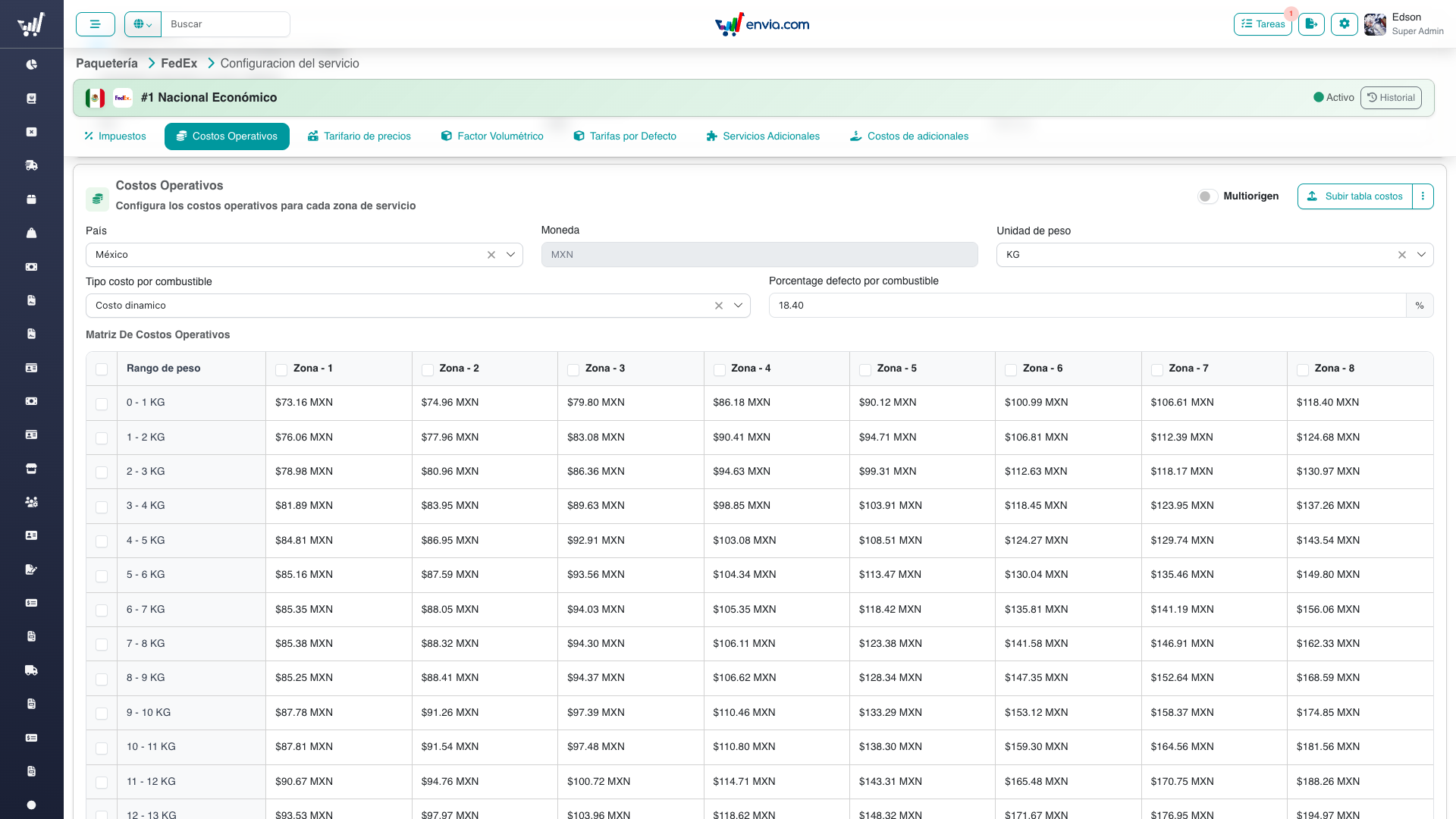
The Operational Costs section: the cost matrix per zone (columns) and weight range (rows), with fuel and multi-origin options.
Switching Between Basic and Multi-Origin Costs
Most services use a single cost matrix (zone × weight range). Some services need different costs depending on where the shipment originates — for these, enable Multiorigin (multi-origin).
- In the Operational Costs section header, toggle the Multiorigen (Multi-origin) switch
- When multi-origin is on, an origin selector appears above the matrix; pick an origin to view and edit its own matrix
- Each origin has its own cost matrix, edited and saved the same way as the basic matrix
- To remove an origin's costs, use its delete action in the origin selector
TIP
Multi-origin CSV files include origin and destination columns. Uploading a file with those columns automatically switches the service into multi-origin mode.
Editing a Cost Cell
- Click on any cell in the cost matrix
- Type the new value
- The cell updates immediately (in-memory)
- Click Save at the bottom to persist all changes
TIP
Changes are held in memory until you save. You can edit multiple cells and save once.
Uploading Costs via CSV
- Click the Upload button in the Costs section header
- In the modal, download the template if needed (link provided)
- Upload your CSV/Excel file with columns:
service_id,zone,weight_extra_cost,weight_max,cost - The system validates the structure and loads the data into the matrix
- Review the loaded data in the matrix
- Click Save to persist
Downloading Costs to Excel
- Click the dropdown arrow next to the Upload button
- Click Download Costs
- An Excel file is generated with the current cost matrix (zones as columns, weight ranges as rows)
Using Bulk Actions on Costs
- Select cells in the cost matrix (click and drag, or use Shift+Click)
- A bulk action modal appears with options:
- Operation: Add, Subtract, or Replace
- Type: Fixed amount or Percentage
- Value: The amount or percentage to apply
- Decimal Config: Round or Truncate
- Decimal Places: Number of decimal places
- Click Apply to update all selected cells
Viewing Service Pricing
- Scroll to the Pricing section
- Select a tariff tab: Basic, Pro, Enterprise, Corporate, or Special
- The matrix shows prices per zone and weight range for the selected tariff
- Each cell displays:
- The selling price (with change indicator if modified)
- The margin/markup percentage (color-coded)
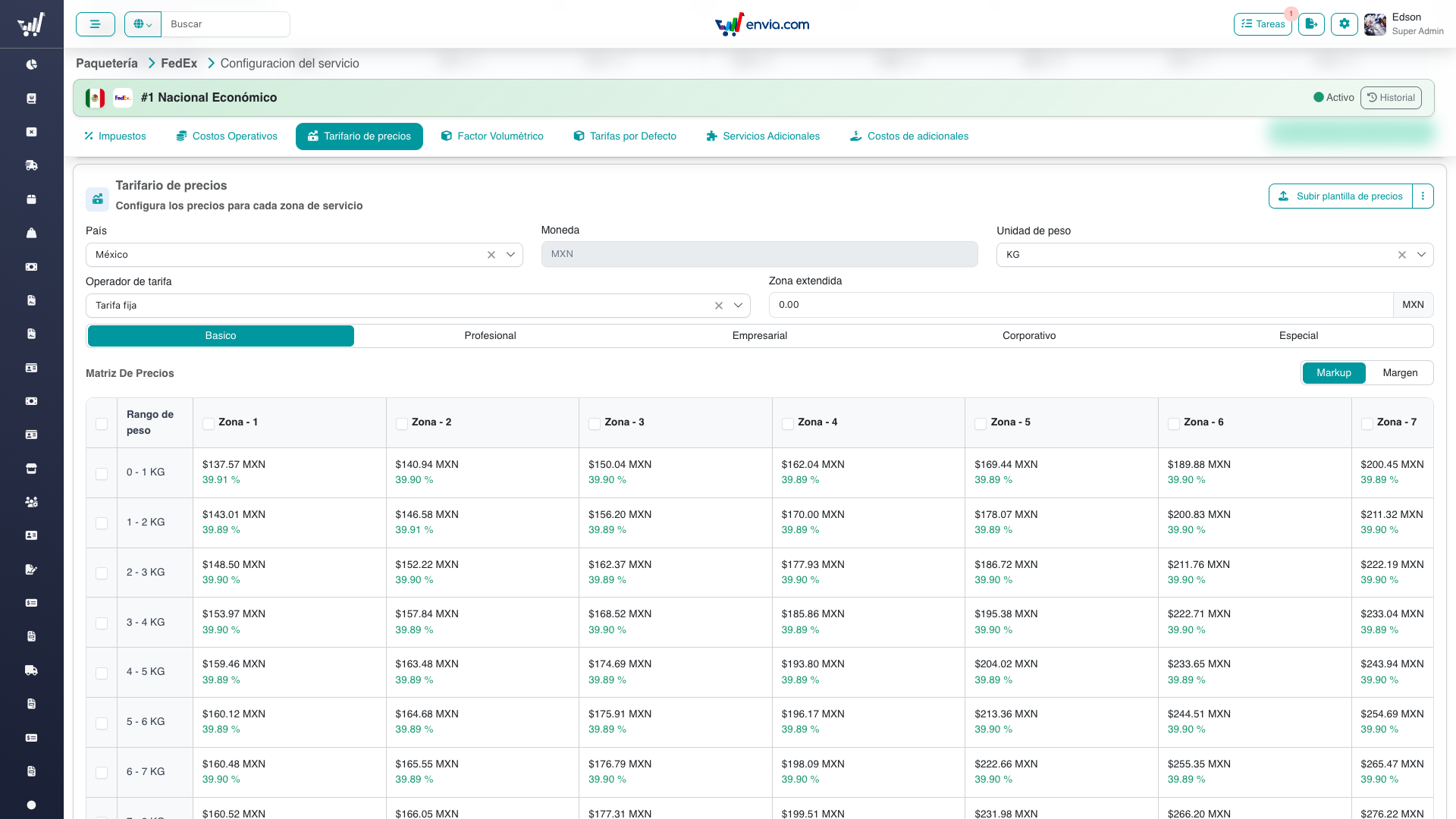
The Pricing section: prices per zone and weight range for the selected tariff, with the Markup/Margin toggle and color-coded percentages.
Understanding Margin Indicators
| Color | Margin Range | Meaning |
|---|---|---|
| 🔴 Red | Below 15% | Danger — price is too close to cost |
| 🟡 Yellow | 15% – 25% | Warning — acceptable but low margin |
| 🟢 Green | Above 25% | Safe — healthy margin |
WARNING
A red banner appears at the top of the matrix when any cell in the current tab has a margin below 15%.
Switching Between Markup and Margin Views
In the Pricing section, use the toggle above the matrix:
- Markup: Shows the percentage increase over cost:
(price - cost) / cost × 100 - Margin: Shows the percentage of price that is profit:
(price - cost) / price × 100
Both views show the same data — only the percentage indicator changes.
Understanding Pricing Operators
The Pricing form has an Operator field with two options:
| Operator | Cell Value Represents | How Price is Calculated |
|---|---|---|
| Flat | Selling price directly | The value you enter IS the price |
| Margin | Markup percentage over cost | Price = graduated cost × (1 + markup/100) |
Graduated cost = base cost + taxes + fuel surcharge.
Uploading Pricing via CSV
- Click the Upload button in the Pricing section header
- Upload a CSV with columns:
service_id,zone,weight_extra_cost,weight_max, and optionallybasic_plan,pro_plan,enterprise_plan,corporate_plan,special_plan - Only tariff columns present in the CSV are updated — missing columns are left unchanged
- Review and save
TIP
You can upload pricing for just one tariff type (e.g., only basic_plan column) without affecting the others.
Using Upgrade Pricing
Upgrade Pricing recalculates all pricing tariffs based on a percentage applied to the cost matrix. This is useful when costs change and you need to adjust all prices proportionally.
- In the Costs section, click the dropdown and select Upgrade Pricing
- Configure global settings: operator (flat/margin), decimal config, decimal places
- For each tariff type (basic, pro, enterprise, corporate, special):
- Enable/disable the tariff
- Set a global percentage, or configure per-zone percentages
- Click Apply — all pricing matrices update in-memory
- Switch to the Pricing section to review the changes (cells show previous → new values)
- Save in the Pricing section to persist
Saving Pricing
You have two save options:
- Save Current Tab: Saves only the active tariff tab (e.g., only "basic")
- Save All Tabs: Saves every configured tariff type (skips empty tabs, including unused Special)
Frequently Asked Questions
When should I use Multi-Origin costs?
Use multi-origin when a service's cost depends on the shipment's origin (for example, different rates from different warehouses or regions). Each origin keeps its own zone × weight cost matrix. If costs are the same regardless of origin, leave the service in basic mode.
What is the "Extended Zone" field in Pricing?
Extended Zone is a flat surcharge (in the service currency) added to shipments in extended delivery areas. It's configured once and applies across all tariff types.
Why does my margin show as negative?
A negative margin means the selling price is below the graduated cost (base cost + taxes + fuel). Review the cost matrix and adjust pricing upward, or use Upgrade Pricing to recalculate.
Can I upload costs and pricing from the same CSV?
No. Costs and Pricing have different CSV structures and are uploaded separately. Costs require a cost column; Pricing requires plan columns (basic_plan, etc.).
What happens if I change the locale?
Changing the locale updates the currency for all cost and pricing values. The zones and weight ranges remain the same — only the monetary unit changes.
How does fuel percentage affect pricing margins?
Fuel is factored into the "graduated cost" used for margin calculation: graduated cost = base cost + (cost × tax%) + (cost × fuel%). Higher fuel percentages raise the effective cost, reducing margins.
What is the Special tab for?
Especial is an optional fifth catalog plan (special) for promotions or campaigns. Not every service has one. You can save the other tabs while Special stays empty. To assign that catalog type to many companies, use Bulk Custom Plans — do not type especial in the assignment CSV; the key is special.
Related
- Service Configuration Overview — General overview and simple sections
- Carriers — list and navigation
- Bulk Custom Plans — Assign catalog plans to many companies
- Technical: Pricing & Costs — Architecture, data flow, and implementation details