
Service Configuration
Configure shipping service parameters including taxes, operational costs, pricing tariffs, freight discounts, volumetric factor, default zones, additional services, additional charges, and additional/surcharge costs.
What You Can Do
- View tax rules applied to a service based on its country/locale
- Configure operational costs per weight range and zone
- Set pricing tariffs (basic, pro, enterprise, corporate, and optional special) with margin/markup tracking
- Assign a freight discount overlay (percent off freight) globally or per company, without editing the price book
- Select the volumetric factor used for dimensional weight calculation
- Assign a default tariff type per shipping zone
- Manage optional additional services (e.g., insurance, extended area)
- Manage mandatory additional charges with activation conditions
- Configure additional-service costs and surcharge costs (what Envia pays for those add-ons)
Getting There
- In the main sidebar, open Paqueterías (
/carriers) - Find the service row (expand the carrier if needed), then click Detalles to open
/carriers/:id/service/:service - The page shows the service header (carrier, name, status) and configuration sections via the navigation pills at the top
TIP
The Carriers list is the main entry point. You can also open a service from the Services section on Carrier Configuration.
The navigation pills scroll to each section:
| Section | Description |
|---|---|
| Taxes | Tax rules by country (read-only) |
| Operational Costs | Cost matrix per zone × weight range |
| Pricing | Selling price matrix per tariff type |
| Discounts | Freight percent overlay (global or per company) |
| Volumetric Factor | Dimensional weight divisor for this service |
| Default Rates | Default tariff type per zone |
| Additional Services & Charges | Optional add-ons and mandatory surcharges (one pill, two tables) |
| Additional Costs | Carrier cost of add-ons and surcharges |
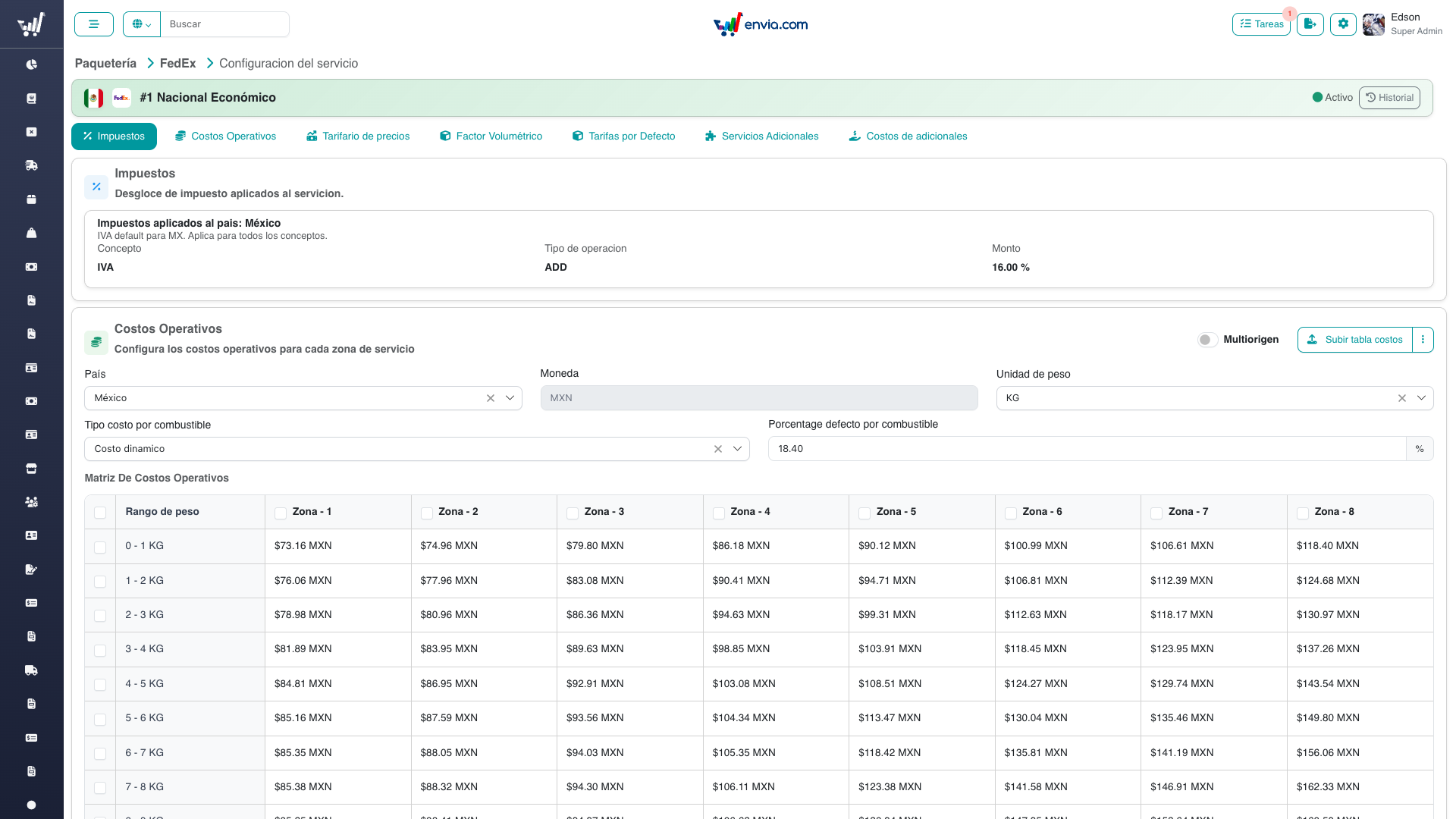
The service header on /carriers/:id/service/:service with navigation pills. Taxes is the first section.
Common Tasks
Viewing Service Taxes
Taxes are read-only — they are derived from the service's locale (country) and cannot be edited from this screen.
- Scroll to the Taxes section (or click the Taxes pill)
- Each card shows a tax rule: country, concept, application type, and rate (%)
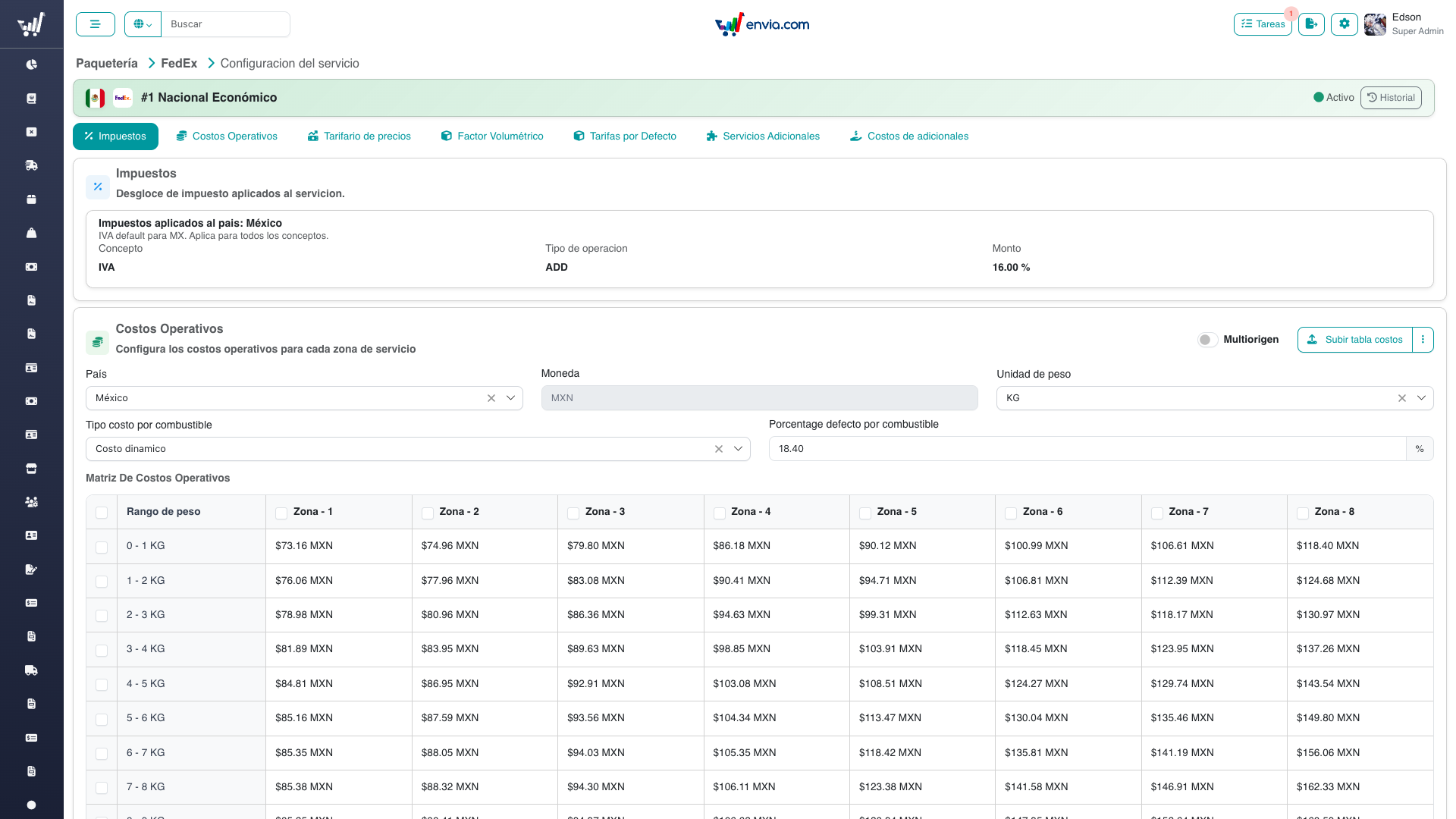
The Taxes section is read-only and shows the tax rules inherited from the service's country.
INFO
To modify tax rules, contact the finance team or update them in the Organization Settings module.
Setting a freight discount
The Discounts section sits above the price book. It does not change plan matrices. Rate and generate apply the percent to freight only (not insurance, add-ons, or custom-key WS price).
- Scroll to the Discounts section (or click the Discounts pill)
- For a global overlay: enter the percent (greater than 0, at most 20), optionally limit it to plan types, optionally set a start/end window, then save
- Leave all plan types checked to apply to every catalog plan (Basic–Special). Custom plans are not discounted by a global overlay
- For a company overlay: open the client at
/client/{id}, go to Planes, open a service, and use Descuento de flete at the top of the pricing panel. A company overlay wins over the global one and does apply when that company is on a Custom plan - Saving deactivates the previous version and inserts a new one. Historical shipments keep the percent that was applied at generate time
WARNING
Net freight is clamped at 0. Confirm before save if the percent could push billed freight below web-service cost — the screen warns, it does not block.
Changing the Volumetric Factor
The volumetric factor determines how dimensional weight is calculated: (Length × Width × Height) / Factor.
- Scroll to the Volumetric Factor section
- Select a new factor from the dropdown (e.g., "5000 KG", "6000 KG")
- Confirm the change in the dialog
- The formula example in the subtitle updates immediately
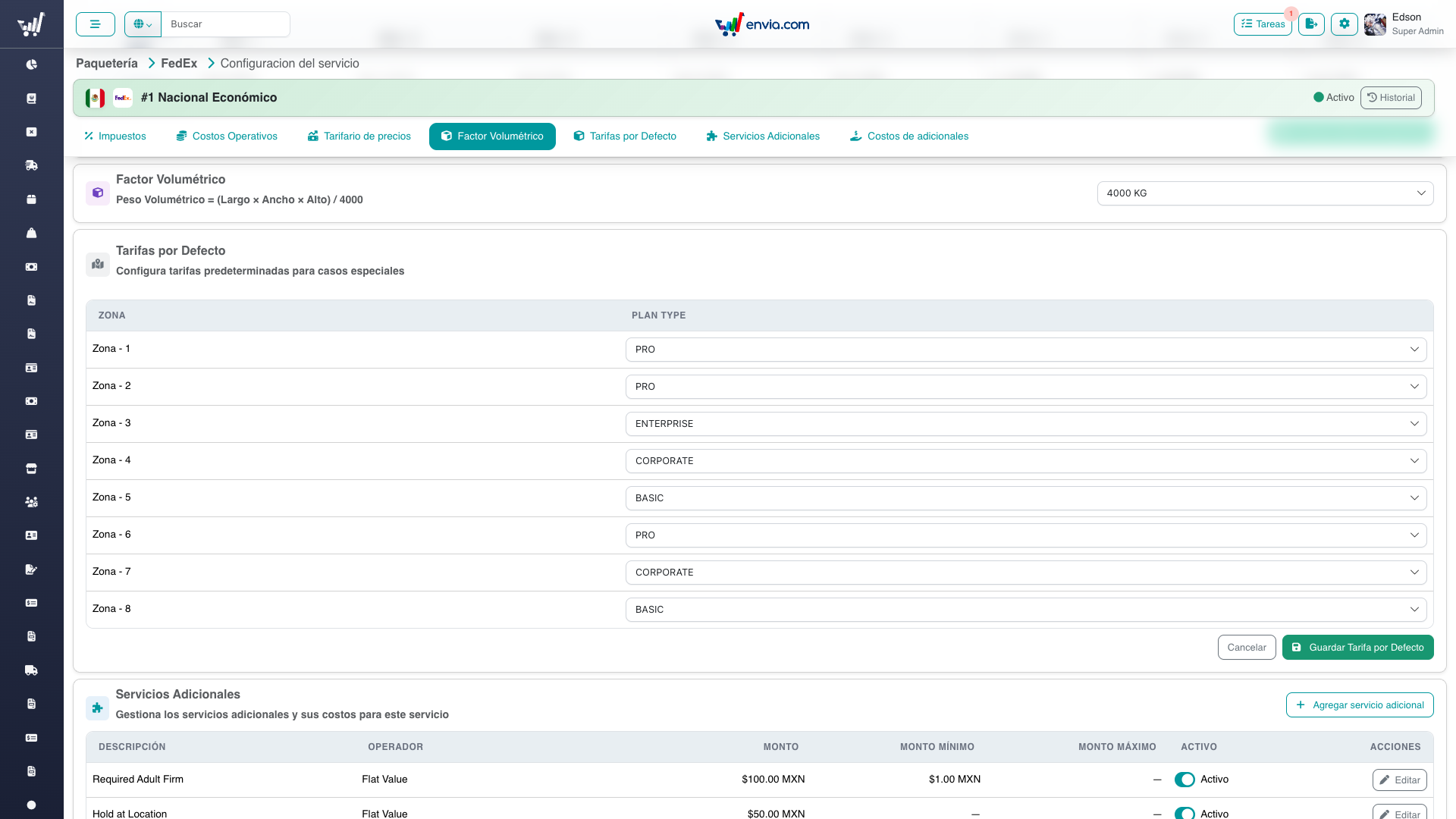
The Volumetric Factor section: pick the divisor used for dimensional weight.
TIP
The available factors come from a system catalog. If you need a new factor value, contact an administrator.
Setting Default Rates per Zone
Default rates define which tariff type (basic, pro, enterprise, corporate, or special) is applied by default to each shipping zone.
- Scroll to the Default Rates section
- Each row shows a zone and its current tariff type
- Select the desired tariff type from the dropdown for each zone
- Click Save to apply changes
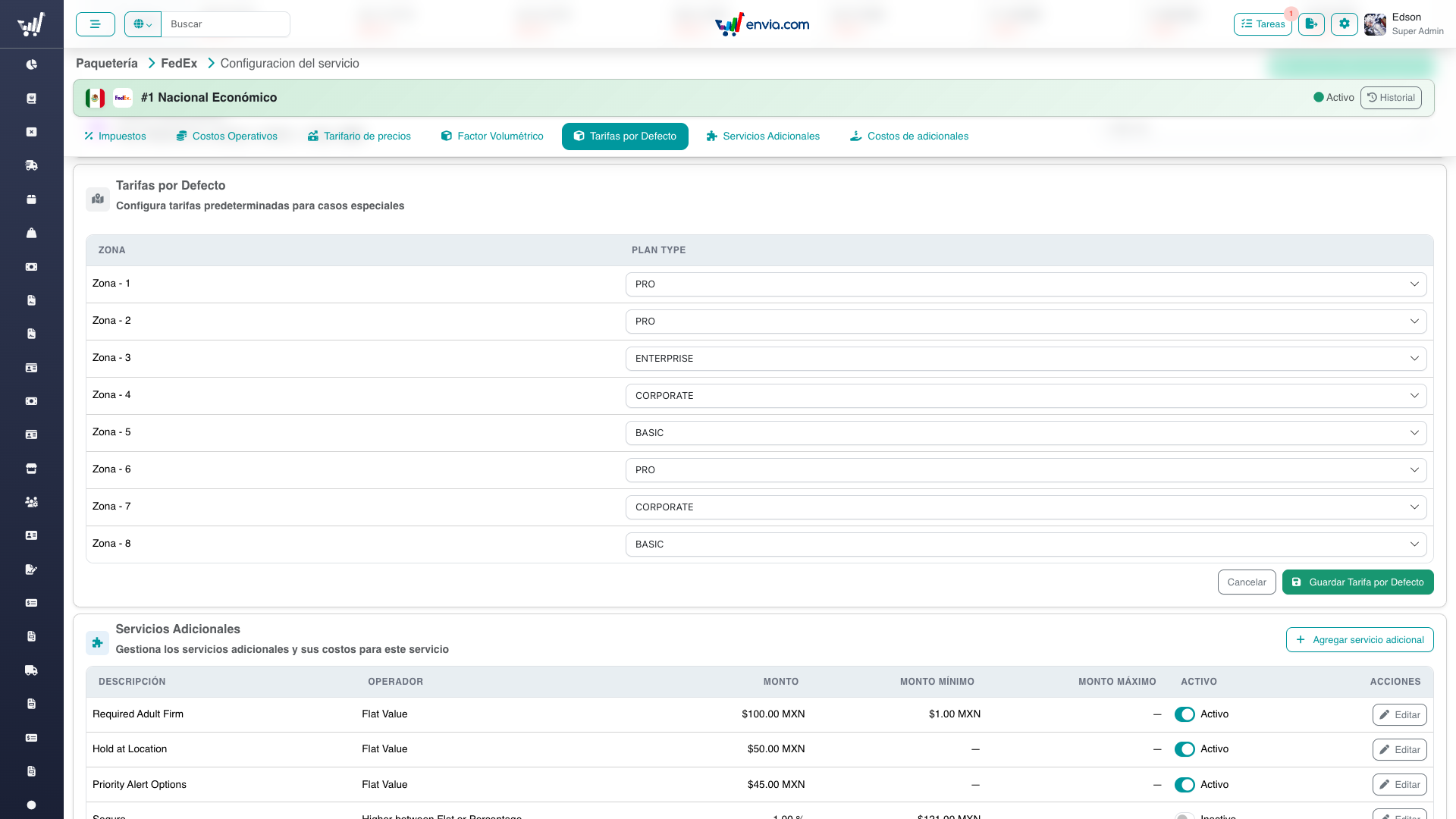
The Default Rates section: assign a default tariff type to each zone.
WARNING
All zones must have a tariff type assigned before saving. Zones without a selection are highlighted as invalid.
Permissions
| Permission | Access Level |
|---|---|
plans-menu | View all sections (read-only) |
manage-service-costs | Edit operational costs and additional/surcharge costs |
manage-service-pricing | Edit pricing tariffs and freight discount overlays |
manage-service-config | Edit volumetric factor, default rates, additional services and charges |
carriers-manage-brand | Edit the service display name, logo, and brand color in the header |
Frequently Asked Questions
How are the sections related to each other?
Taxes affect the margin calculation shown in the Pricing section (taxes + fuel are added to cost to compute the "graduated cost"). Costs provide the base values that Pricing builds upon. Zones in Default Rates come from the zones defined in the Costs matrix.
Costs feed Pricing; Taxes and Fuel turn the base cost into the graduated cost used for margins; the zones in the Costs matrix drive the Default Rates.
Can I configure a service that has no costs yet?
The Pricing, Default Rates, and Zones sections depend on having cost data. If no costs are configured, those sections will show empty states. Configure Costs first, then Pricing and Default Rates.
What's the difference between Additional Services and Additional Charges?
Additional Services are optional — they can be activated or deactivated per shipment. Additional Charges are mandatory — they are automatically applied when their conditions are met (e.g., overweight, oversized packages).
Where does the currency come from?
The currency is determined by the service's locale. When you select a locale in the Costs or Pricing forms, the currency updates automatically to match (e.g., Mexico → MXN, USA → USD).
I need to turn a service off for one client only — is this the right screen?
No. Everything here applies to the service globally, for every client. To make a carrier or service unavailable to a single client, use the Paqueterías tab of that client's detail page — see Client Carrier Activation.
Related
- Carriers — The list and how to navigate to this page
- Carrier Configuration — Per-carrier settings (not prices)
- Pricing & Costs Guide — How to configure operational costs and pricing tariffs
- Additional Services & Charges Guide — How to manage add-on services and mandatory charges
- Additional Costs Guide — Carrier cost of add-ons and surcharges
- Impact Guide — Chain of effects for every section and what changes when you save
- Glossary — All module terms defined
- Client Carrier Activation — How to enable or disable carriers and services for one specific client
- Bulk Custom Plans — Assign catalog plans (including Special) to many companies from a CSV
- Technical Documentation — Architecture, data flow, and database design for developers