
Bulk Custom Plans
Assign a catalog price plan to many companies at once from a CSV, instead of opening each company in the legacy custom-plans panel.
Create the tariff first
This screen assigns an existing catalog plan. To create or edit prices (including the Especial tab), use Pricing & Costs on the service configuration page.
The Big Picture
Every company can follow a catalog plan type (basic, pro, enterprise, corporate, or special) for a given service and zone. After you assign it here, the company keeps following catalog updates — you are not freezing a private price list.
You work on the carriers list (/carriers).
What You Can Do
- Download an Excel template with the expected columns
- Upload a CSV of company, service, plan, and optional zone
- Review which rows will apply (and which are rejected) before writing anything
- Apply only valid rows, in batches, with on-screen progress
- Assign the same plan to every active zone of a service by leaving zone blank
Getting There
- In the main sidebar, open Paqueterías (
/carriers) - In the page header, click Asignar planes custom
- The button is shown only if you have the Bulk custom plans permission (
bulk-custom-plans). Re-login after it is granted.
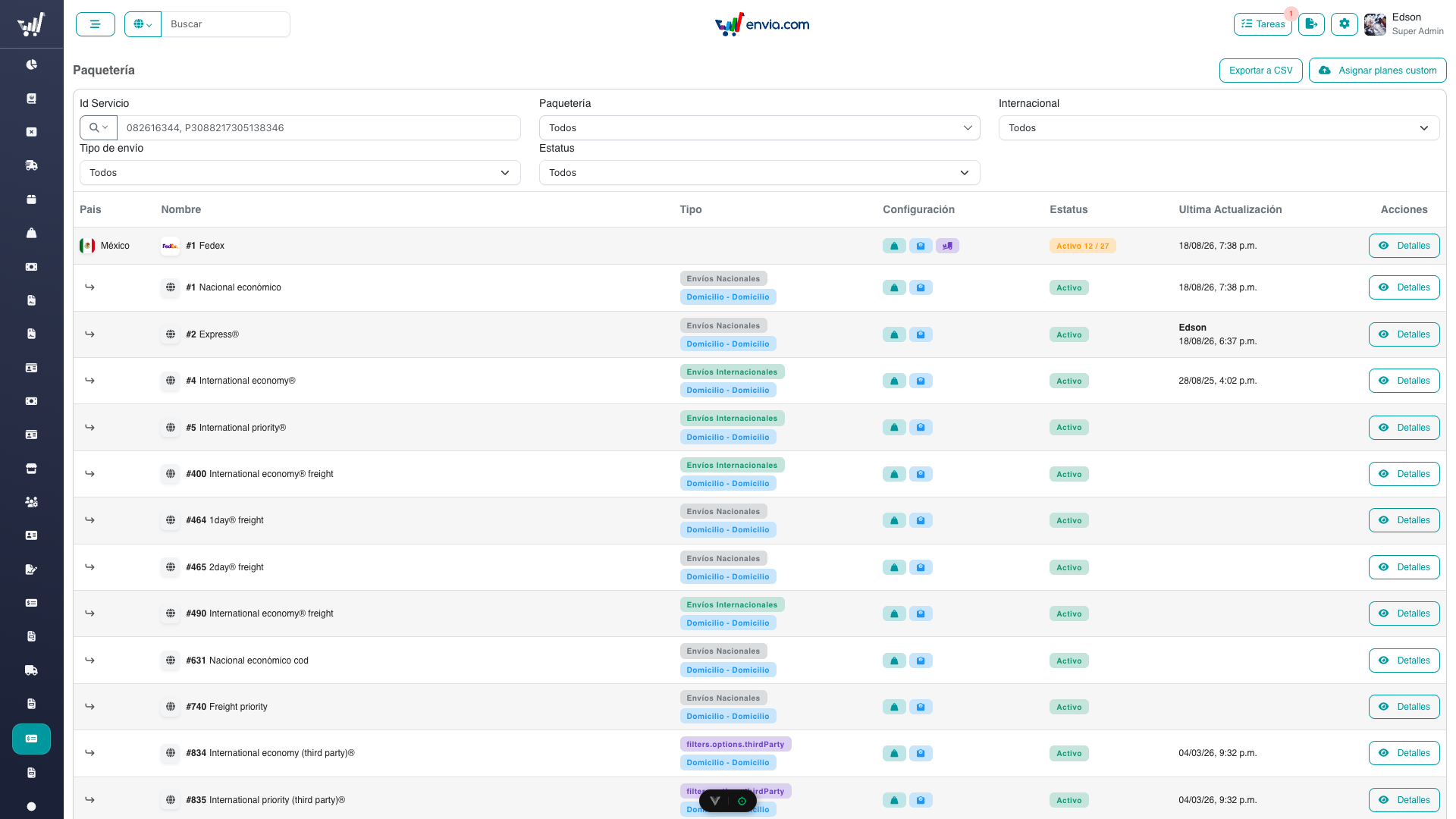
The Asignar planes custom button is on the Paqueterías list header (/carriers).
CSV format
| Column | Required | What to put |
|---|---|---|
company | Yes | Company id (number) |
service | Yes | Service id (number) |
plan | Yes | Exactly one of: basic, pro, enterprise, corporate, special (English, case-insensitive) |
zone | No | Zone number. Empty or missing = every active zone of that service for that plan |
Example:
| company | service | plan | zone |
|---|---|---|---|
| 1001 | 55 | special | |
| 1001 | 55 | pro | 1 |
Use special, not especial
The file contract is the catalog key. The Spanish label Especial is only for the price-book tab, not for the CSV.
Limits: 5000 rows per file. Apply runs in parts of up to 500 companies.
Common Tasks
Assigning catalog plans from a CSV
- Open
/carriersand click Asignar planes custom. - Optionally click the template button and replace the sample ids with real company and service ids.
- Upload the file. The modal checks columns, then the server classifies each row.
- In the offcanvas, open Válidas and Rechazadas:
- Reemplazo — the company already has an active custom plan for at least one of those zones; it will be replaced.
- Nuevo — no active custom plan for those zones yet.
- Fix rejected rows in the spreadsheet if needed (you can cancel, edit, and upload again).
- Click Aplicar asignaciones. Do not close the panel until every part shows Listo or Error.
- Confirm the toast with the number of assignments applied.
Blank zone
Leave zone empty when the same catalog type should apply on all active zones of that service. Listing every zone by hand is only needed when assignments differ by zone.
Reading rejection reasons
| Reason shown | What to fix |
|---|---|
| Unknown plan | Use basic / pro / enterprise / corporate / special only |
| Company not found | Check the company id |
| Service not found | Check the service id |
| Invalid zone | That zone is not a valid catalog zone for the service |
| The service has no such plan for that zone | Create the catalog tariff first (for Special, fill the Especial tab on /carriers/:id/service/:service) |
| Duplicate row (last one is used) | The same company + service + zone appeared twice; only the last row is kept |
| The file exceeds the row limit | Split the file into batches of 5000 rows or fewer |
Permissions
| Permission | Access |
|---|---|
bulk-custom-plans | See the import button and run preview/apply |
Editing catalog prices still uses manage-service-pricing on the service page. Assigning plans to one company in the legacy PHP panel still uses that panel's own permission.
Frequently Asked Questions
Does this replace the Price Book?
No. The Price Book defines what the catalog charges. This flow only points companies at those catalog types.
Will later catalog price edits affect assigned companies?
Yes. The assignment stores a pointer (type_id), not a copy of every price cell. If you need a frozen private list, that is a different product (true custom / snapshot) and is not this CSV.
What if some rows fail after I click apply?
Valid rows still save. Failed rows are reported per part. You can export a corrected CSV for the failures and upload again.
Why is the Special tab empty on a service?
Special is optional (promotions and campaigns). Preview will reject CSV rows for that service until someone saves a Special plan on the price book.
Can I undo a bulk apply?
Applied rows stay as history, like any other assignment. To undo, deactivate those custom rows or re-assign the previous type (bulk CSV again, or the per-company panel).
Related
- Pricing & Costs — create and edit catalog tariffs, including Special
- Carriers — browse carriers and open configuration
- Glossary — plan types and related terms
- Technical Documentation — architecture, API, and UI for developers