
Additional Services & Charges
Manage optional add-on services and mandatory surcharges for a shipping service. Both use the same configuration interface but differ in their activation behavior.
Mandatory charges fire automatically
Changes to Additional Charges conditions affect which shipments are charged immediately after saving. Read the Impact Guide before editing conditions on live services.
Overview
Each shipping service can have two types of add-ons:
- Additional Services (
mandatory = false) — Optional features that customers or operators can enable per shipment (e.g., insurance, signature confirmation, extended area delivery). - Additional Charges (
mandatory = true) — Surcharges that are automatically applied when specific conditions are met (e.g., overweight fee, oversized package surcharge).
Both types share the same pricing operators and configuration form. The key difference is that Additional Charges include activation conditions that determine when the charge applies.
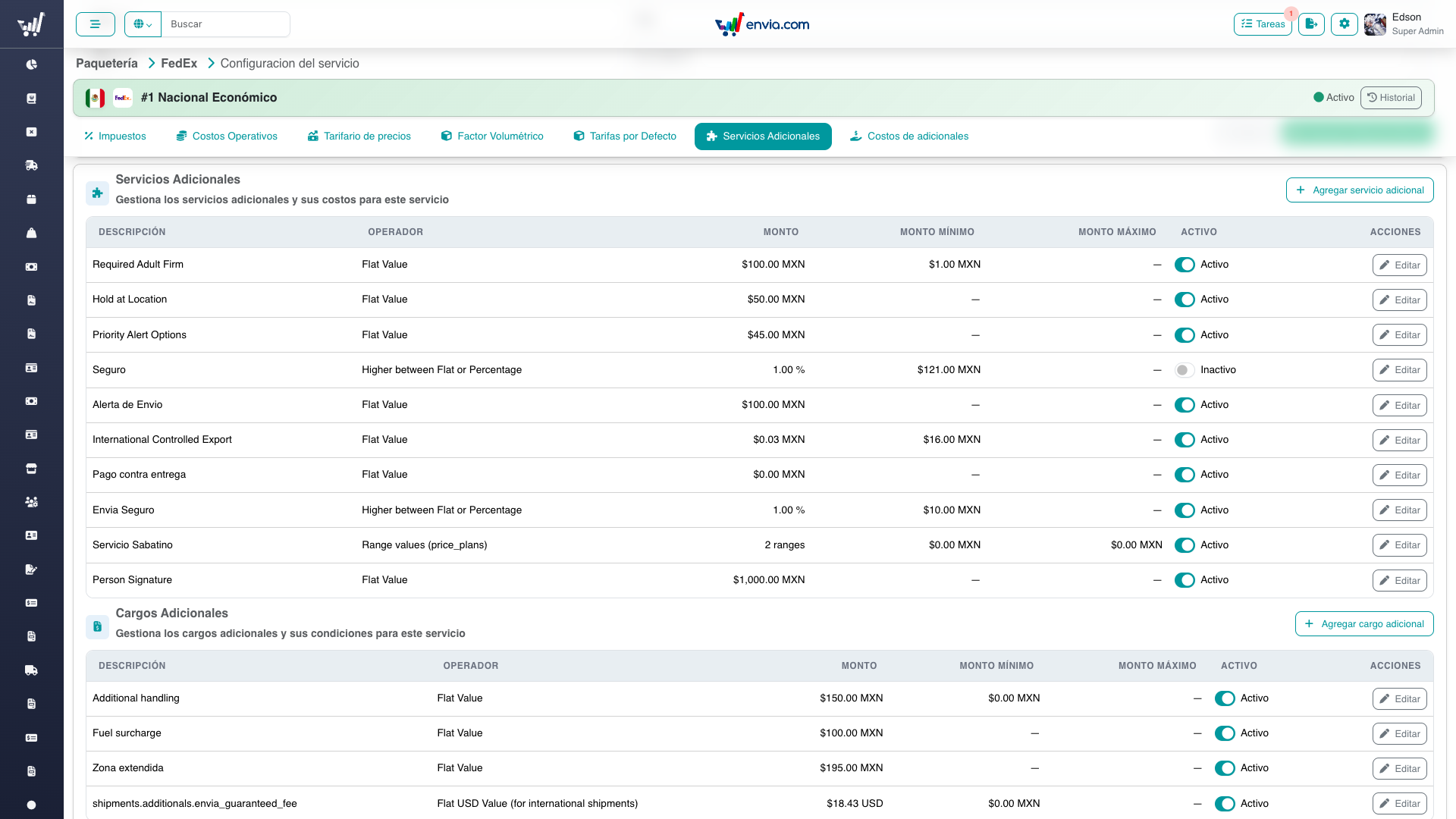
Additional Services (optional add-ons): operator, amounts, active toggle, and Editar per row.
What You Can Do
- View all additional services and charges configured for a service
- Add new additional services or charges from a catalog
- Edit pricing, operator, and configuration for existing items
- Toggle items active/inactive without deleting them
- Configure 19 different pricing operators (flat, percentage, weight-based, range-based, etc.)
- Set up range-based pricing with plan definitions (weight or amount ranges)
- Define activation conditions for additional charges (weight, dimensions, zone, insurance value, etc.)
Getting There
- Open a service from Paqueterías:
/carriers/:id/service/:service - Click the Additional Services & Charges pill (both tables are in that section)
Common Tasks
Adding an Additional Service
- In the Additional Services section, click Add
- Select the service type from the dropdown catalog
- Configure the General Settings:
- Apply To: Unit, Package, or Shipment (determines how the charge is calculated)
- Mandatory: Leave off for additional services
- Editable: Whether the amount can be modified per shipment
- Force Save: Whether to save the service even if already present
- Active: Enable or disable the service
- Configure Taxes:
- Include VAT: Whether VAT is included in the amount
- Tax Percentage: Select applicable tax rate from the service's tax rules
- Configure Pricing:
- Select an Operator (pricing method)
- Fill in the amount fields that appear based on the selected operator
- Click Save
Adding an Additional Charge
- In the Additional Charges section, click Add
- The process is identical to adding a service, except:
- Mandatory is enabled by default
- A Conditions section appears at the bottom of the form
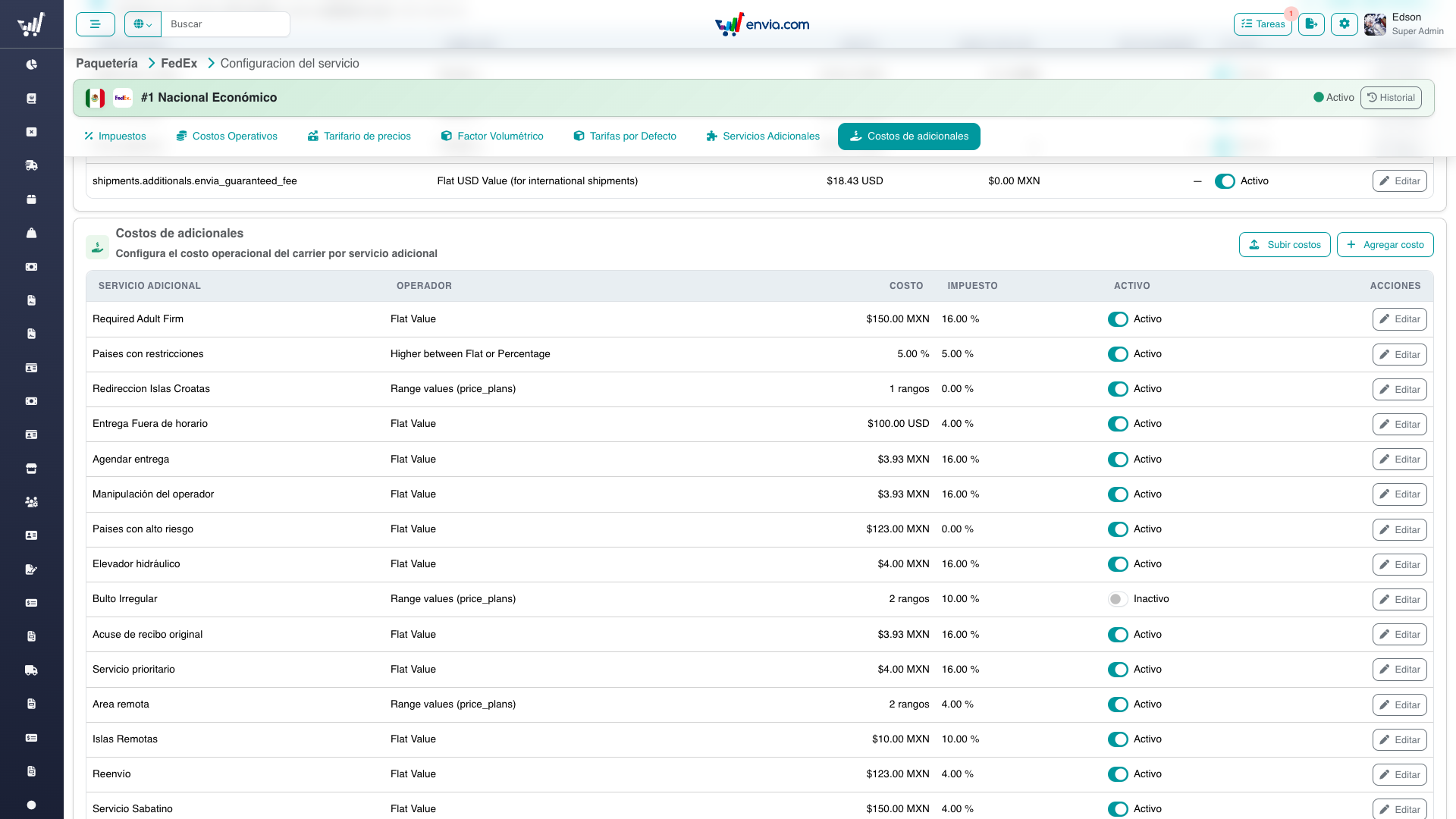
The Additional Charges table lists mandatory surcharges (e.g., additional handling, extended zone) with their operator and amount.
Editing an Existing Item
- Click the Edit button on any row in the table
- The form opens with pre-filled values
- Modify any fields (note: the operator cannot be changed after creation)
- Click Save
Toggling Active/Inactive
- Use the toggle switch in the Active column of the table
- The change is saved immediately (no confirmation needed)
Setting Up Conditions (Additional Charges Only)
Conditions determine when a mandatory charge is automatically applied:
- In the edit form for an additional charge, scroll to the Conditions section
- Click + to add a new condition row
- For each condition, configure:
- Reference Value: What property to evaluate (see table below)
- Operator: Comparison operator (
>,>=,<,<=,=,!=) - Value: The threshold value
- Active: Enable or disable this condition
| Reference Value | Description | Example |
|---|---|---|
weight | Package volumetric weight | weight > 30 |
rawWeight | Package actual weight | rawWeight > 25 |
length | Package length | length > 120 |
width | Package width | width > 80 |
height | Package height | height > 80 |
dimensionsSum | L + W + H | dimensionsSum > 300 |
dimensionsCubic | L × W × H | dimensionsCubic > 500000 |
insurance | Declared insurance value | insurance > 10000 |
declaredValueUSD | Declared value in USD | declaredValueUSD > 2500 |
zone | Shipping zone number | zone = 8 |
shipmentWeight | Total shipment weight | shipmentWeight > 70 |
companyId | Company identifier | companyId = 123 |
custom | Custom field | custom = "value" |
TIP
Multiple active conditions on the same charge are evaluated together. All conditions must be met for the charge to apply.
Understanding Operators
The operator determines how the charge amount is calculated. Here are the most commonly used operators:
Simple Operators
| ID | Name | Amount Field | Description |
|---|---|---|---|
| 1 | Flat | Fixed amount (currency) | A flat fee in the service currency |
| 2 | Percentage | Percentage (%) | A percentage of the shipment value |
| 9 | Flat USD | Fixed amount (USD) | A flat fee in US dollars |
Composite Operators
| ID | Name | Fields | Description |
|---|---|---|---|
| 3 | Highest: Flat or % | Percentage + Minimum amount | Applies the higher of: percentage or minimum flat amount |
| 5 | Min + Commission (Insurance) | Minimum amount + Percentage | Base minimum plus percentage of insurance value |
| 11 | Highest: Flat or % (COD) | Percentage + Minimum amount | Same as 3, specific to COD (cash on delivery) |
| 13 | Highest: Flat or % (USD) | Percentage + Minimum (USD) | Same as 3 with minimum in USD |
Weight-Based Operators
| ID | Name | Fields | Description |
|---|---|---|---|
| 10 | Package Weight | Amount per kg | Multiplied by package weight |
| 16 | Package Weight or Min | Minimum + Amount per kg | Higher of: minimum amount or weight × rate |
| 17 | Base + Package Weight | Base amount + Amount per kg | Fixed base plus weight × rate |
| 14 | Weight Over Allowed | Amount per extra kg | Applied only to weight exceeding the allowed limit |
Range-Based Operators (Plan Definitions)
| ID | Name | Description |
|---|---|---|
| 4 | Range Price Plans | Different rates per weight range |
| 15 | Range Price Plans (Amount) | Different rates per declared value range |
| 19 | Range Price Plans (Insurance) | Different rates per insurance value range |
When using range-based operators, a Plan Definitions table appears where you configure:
- Min Value / Max Value: The range boundaries (weight in kg for op 4, currency for op 15/19)
- Rate Type: How the amount is calculated within this range (Flat, Percentage, or Highest)
- Amount: The rate value
- Minimum Amount: Fallback minimum (only for "Highest" rate type)
To add a range row, click the + button above the table. Each range covers a continuous interval (e.g., 0–5 kg, 5–10 kg, 10–30 kg).
Other Operators
| ID | Name | Description |
|---|---|---|
| 6 | Web Service % | Percentage applied to external web service price |
| 7 | Web Service Response | Amount returned by external web service |
| 8 | Min or User Input | User enters amount, minimum enforced |
| 12 | Flat + Insurance | Flat fee plus insurance-based calculation |
| 18 | Higher: Carrier or % | Higher of carrier surcharge or percentage |
Frequently Asked Questions
Can I change the operator after creating an additional service?
No. The operator is locked after creation. To use a different operator, create a new additional service with the desired operator and deactivate the old one.
What happens when I deactivate an additional service?
The service is no longer applied to new shipments, but historical records are preserved. You can reactivate it at any time using the toggle.
How do plan definitions work with percentage operators?
When a plan definition row uses the Percentage rate type, the amount is stored as a decimal (e.g., 0.15 for 15%). The UI displays it as a percentage for clarity, and converts it back on save.
Can an additional charge have no conditions?
Yes, but it will apply to every shipment for this service. Conditions are optional — if none are active, the charge is always applied.
What does "Apply To" mean?
It determines the scope of the charge calculation:
- Shipment: Applied once per shipment
- Package: Applied per package in the shipment
- Unit: Applied per unit/item in a package
What does "Include VAT" do?
When enabled, the system considers VAT already included in the configured amount. The selected tax percentage is used to calculate the VAT portion (for fiscal reporting), not to add tax on top.
Related
- Service Configuration Overview — General overview and simple sections
- Additional Costs — what Envia pays for these add-ons
- Technical: Additional Services & Charges — Architecture, API, and implementation details